
This article is a comprehensive step-by-step guide on how to configure user authentication for your Casebase account so that app users in your organization can sign in using the Microsoft Identity Platform (Microsoft Entra ID) as an authentication provider via Single Sign-On.
📄Content:
A) Create app (EntraID)
B) Register app (EntraID)
C) App authorizations (EntraID)
D) Configuration (Casebase)
E) SSO testing (Casebase)
F) App access restrictions (EntraID) - optional
ℹ️: Ensure you have the necessary Microsoft Entra ID admin roles (consult your IT department if needed) and the Casebase administrator role to complete these settings.
HOW TO SET UP MICROSOFT ENTRA ID SINGLE SIGN-ON IN CASEBASE
A) Creating a New Application in Microsoft Entra ID
- Log in to the Microsoft Entra Admin Center.
If you have access to multiple tenants, use the settings icon at the top of the menu to switch to the desired tenant via the “Directories + Subscriptions” menu, where the application should be registered. - Navigate to App registrations
(Identity > Applications > App registrations) - Click on + New registration
- Create a new app registration:
- Assign a name to the app (e.g., Casebase SSO).
- Select the supported account types
(e.g., Accounts in this organizational directory only). A description of the various account types can be found in the application registration guide. - Do not enter a redirect URI yet. This configuration will be done in the next step.
- Complete the app registration by clicking Register.
🚨 Write down the Application (client) ID and Directory (tenant) ID shown on the app overview page.ight
B.) Registering the Redirect URI (your Casebase response URL)
- Navigate again to App registrations in the Microsoft Entra Admin Center
(Identity > Applications > App registrations) - Select the app you created in the previous step (Casebase SSO).
- Choose Authentication from the app’s side menu under the Manage section.
- Click + Add a platform
- Under Web applications, choose the Single-page application button.
- Under Redirect URIs, now enter the specific Casebase redirect URI
(e.g.,https://[your-domain].casebase.ai/) - Do not check any of the boxes under Implicit grant and hybrid flows.
Click Configure to complete adding the redirect URI.
C.) Adding App Permissions
- Navigate again to App registrations in the Microsoft Entra Admin Center
(Identity > Applications > App registrations) - Select your app (e.g., Casebase SSO)
- Choose Certificates & secrets from the app’s side menu under the Manage section.
Under Client secrets, click + New client secret. - Provide a description for the new client secret (e.g., Graph API access for Casebase).
- Choose an expiration period for the client secret (e.g., 12 months).
- Click Add to complete the creation of the new client secret.
- Choose Certificates & secrets from the app’s side menu under the Manage section.
- Go to API permissions under the Manage section in the sidebar.
- Click + Add a permission.
- Choose Microsoft Graph.
- In the Request API permissions section, select Application permissions.
- Search for “user” in the search bar.
- Under the User dropdown, enable User.Read.
- Click Add permissions.
- Grant admin consent for the added permission. More details can be found here.
D.) Configuring SSO in Casebase
- Open a new browser tab with your Casebase app.
- Navigate to Company Settings (gear icon in the upper right corner).
Note: If this icon is not visible, you do not have admin rights and cannot configure SSO in Casebase. - Navigate to Integrations in the side menu of the company settings, then select Microsoft SSO.
- Enter the Microsoft SSO configuration data into the provided input fields:
- Enter the Application ID (Client ID).
If it’s not cached, you’ll find it under Microsoft Entra ID > Identity > Applications > App registrations > Casebase SSO > Overview page. - Enter the Directory ID (Tenant ID).
If it’s not cached, you’ll find it under Microsoft Entra ID > Identity > Applications > App registrations > Casebase SSO > Overview page. - Click Update to save the settings.
- Enter the Application ID (Client ID).
E.) SSO Login Testing
Tip: Use a login with an e-mail address and password to test the configuration.
Once you have set up and update the SSO configuration, a "Test SSO Configuration" button will appear.
Clicking it will open a Microsoft login page where you can sign in with your Microsoft work account.
✅ If the configuration is successful, you will be redirected back to the SSO configuration page.
❌ If the configuration is incorrect, Microsoft will display an error message with details about the issue.
Use your browser to navigate back to the SSO configuration page in Casebase, correct the entered values, save the changes, and test the SSO configuration again.
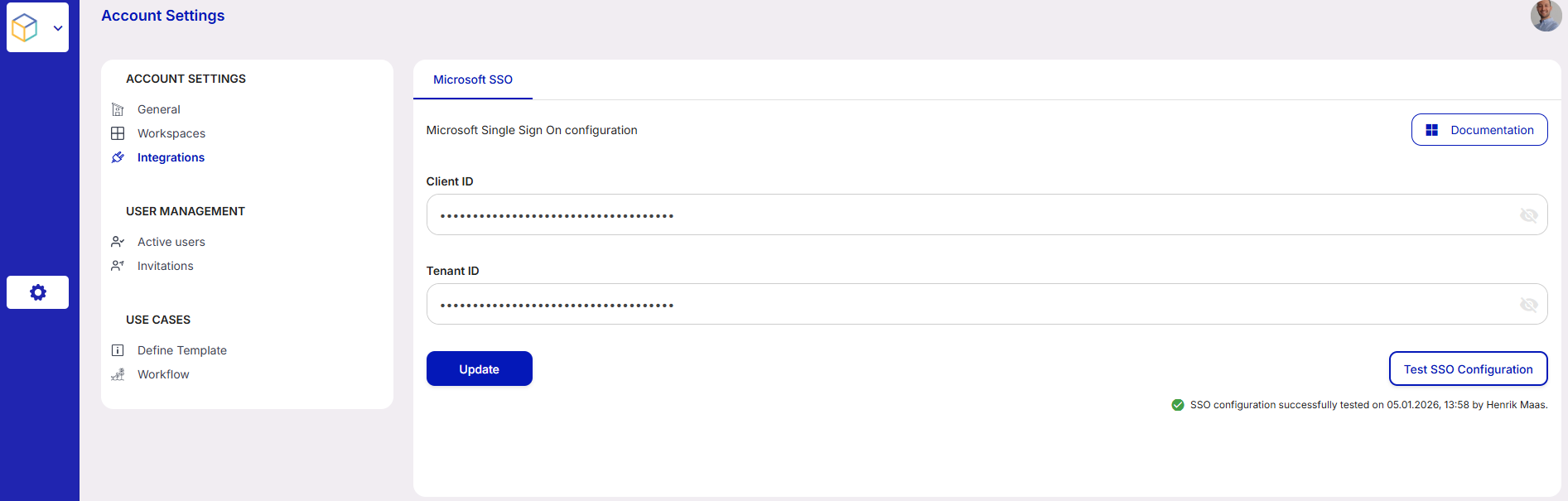
💡As soon as we have entered values in the integration mask, the SSO login is displayed on your https://[custom domain].casebase.ai/login/, even if the values may be incorrect. Due to the lack of authorization to read your Micorosoft EntraID data, we can only test the configuration to a limited extent.
F) Access Restriction to Casebase via EntraID User Groups (optional)
Optional you can restrict the registered Entra ID app to those users who should have access to Casebase—regardless of their role-based permissions (which can be managed via Casebase).
F1) Enable User Assignment for the Casebase App
-
Sign in to the Microsoft Entra Admin Center.
-
If you manage multiple tenants, use the "Directories + Subscriptions" filter at the top to select the correct tenant.
-
Navigate to Entra ID > Enterprise Applications > All Applications.
-
Locate and select the Casebase application.
-
In the left menu, go to "Properties".
-
Set "Assignment required?" to "Yes".
-
Click "Save" at the top to apply the change.
ℹ️: Once assignment is required, users must be explicitly assigned to the app to access it. End-user consent will no longer be allowed—make sure a global administrator grants tenant-wide admin consent if needed.
F2) Assign Users and Groups
-
In the Casebase app, go to "Users and groups" and click "Add user/group".
-
In the "Users" section, select the desired users or groups.
-
(Optional) If Casebase supports app roles, you can assign roles here.
-
Click "Assign" to confirm.
-
Once assigned, users and groups will appear in the list and will be able to sign in via SSO.