
The Jira Cloud integration allows you to connect Casebase directly to your Jira Cloud instance. This enables you to create Jira Epics from use cases, synchronize field data, and automatically push status updates back into Casebase.
📑 Table of Contents
🔐 1. Prerequisites for the Jira Cloud Integration
⚙️2. Set up the integration between Casebase & Jira Cloud
🗂️ 3. Data Mapping for (Casebase → Jira) & (Jira → Casebase)
🔄 4. Webhook Setup (Jira → Casebase)
📋 5. Displaying linked Jira issues inside a use case
⚡ 6. Troubleshooting
🔐 1. Prerequisites for the Jira Cloud Integration
To successfully connect your Jira Cloud instance, make sure you have:
- Access to an active Jira Cloud instance
- A Jira administrator account or a user with site-admin permissions
Required to create custom fields, configure screens, or set up webhooks in Jira)
- The Base URL of your Jira Cloud instance
- The email address of your Jira admin user
- A valid API token (Generated in the Atlassian account of the Jira admin user)
⚙️2. Set up the integration between Casebase & Jira Cloud
2.1 Initial connection
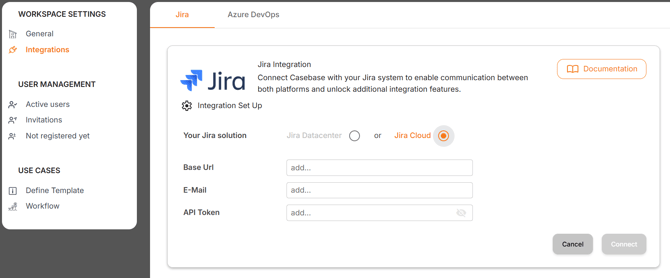
- Open Workspace Settings → Integrations → Jira in Casebase.
- Click “Connect”.
- Select “Jira Cloud”.
- Enter the required connection details:
- Base URL
- Email (Jira admin user email)
- API Token (More info: 🔗 How to create an API token for your Atlassian account)
- Click “Connect” → Casebase will automatically validate the connection.
- Once successful, all available Jira Integration features will be displayed.
2.2 Enable Features
You can enable each feature independently. A bidirectional synchronization requires both, Casebase → Jira & Jira → Casebase.
Available features:
- Create Jira Epics from Casebase & sync field data | Casebase → Jira
- ⚙️ Configure Data Mapping
- Synchronize Jira data back to Casebase | Jira → Casebase
- ⚙️ Register the Jira Webhook
- ⚙️ Configure Data Mapping
- Display linked Jira issues inside the use case |
- ⚙️Listing different Jira Issue Types
🗂️ 3. Data Mapping for (Casebase → Jira) & (Jira → Casebase)
The Data Mapping defines which fields are synchronized between Casebase and Jira — in both directions:
- Casebase → Jira
- Jira → Casebase
This ensures that all relevant information in a use case and its corresponding Jira Epic remains aligned.
🔍 3.1 Mapping fundamentals
- Casebase only reads and writes fields that are assigned to the Jira Epic issue type.
(Mapping applies globally for Epics, not per project/space.) - Before defining your mapping, consider:
👉 Which Casebase fields should be visible in Jira?
👉 Which Jira fields should sync back to Casebase? - Casebase cannot create new fields in your Jira instance.
(Only Jira apps from the Atlassian Marketplace are allowed to do this.)
➡️ Therefore, we recommend creating the necessary custom fields in Jira before configuring the mapping in Casebase.
🧩 3.2 How to prepare Jira for data mapping
To ensure Casebase can read and update the correct fields, you must create the required custom fields in Jira and assign them to the Epic issue type.
3.2.1 Create a new field in Jira
👉 Atlassian documentation:
https://support.atlassian.com/jira-cloud-administration/docs/create-a-custom-field/
Recommended best practice:
- For Casebase fields that are not long-text fields (dropdowns, selections, fixed-value fields),
use a read-only text field in Jira. - This ensures data integrity and makes it clear to Jira users that this field is controlled by Casebase.
- Add a description such as:
“This field is synchronized by Casebase.” - Tip: Configure the context of the field as global
3.2.2 Assign the custom field to a screen scheme
To make the field available in Epics, assign it to the correct Screen Scheme.
👉 Atlassian documentation:
https://support.atlassian.com/jira-cloud-administration/docs/add-a-custom-field-to-a-screen/
Important: Ensure that the Epic issue type uses this screen scheme in your Jira projects.
3.2.3 Configure the Epic layout
You can adjust the Epic layout for each Jira project (space).
👉 Atlassian documentation:
https://support.atlassian.com/jira-cloud-administration/docs/configure-issue-layout/
📋 Examples for field mappings
| Casebase field | Jira field | Recommendation |
|---|---|---|
| Title | Epic Summary | Standard |
| One-sentence use case | Description | Standard |
| Challenge | Custom Field: Challenge (Paragraph Text) | New custom field |
| Maturity Level | Custom Field: Use Case Maturity (Read-only Text) | New custom field |
| Organization | Custom Field: Organization (Read-only Text) | New custom field |
| Author | Reporter | Jira standard field |
The Casebase Title field is automatically mapped to Epic Summary by default.
⚠️ Important Note on Data Mapping
-
Mapping changes are not applied retroactively.
They only take effect when a use case or the linked Jira Epic is synchronized again. -
Be mindful of mandatory Jira fields.
If you map a mandatory Jira field, the corresponding Casebase field must also be mandatory and contain a value — or the Jira field must already be filled.
Otherwise, the synchronization will fail.
🔄 4. Webhook Setup (Jira → Casebase)
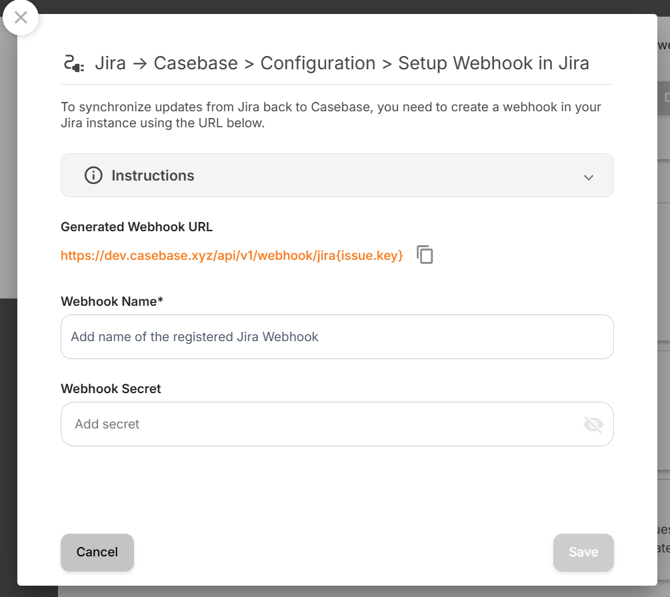
To push updates from Jira back to Casebase, you must configure a webhook in Jira and link it to your workspace. The setup consists of three parts.
A) Start the configuration in Casebase
- Open the Jira Integration Overview in Casebase.
- Go to “Jira → Casebase”.
- Click the ⚙️ settings icon.
- Select “Configure webhook in Jira”.
- Copy the automatically generated Webhook URL.
B) Create the webhook in Jira
👉 Atlassian documentation:
https://support.atlassian.com/jira-cloud-administration/docs/manage-webhooks/
Steps in Jira:
- Open Jira Cloud → System Settings → Webhooks
- Click “Create Webhook”
- Enter a name (e.g., Casebase Integration)
- Paste the Webhook URL from Casebase
- Generate a Secret, and copy it
(you will need this later in Casebase) - (Optional) Limit webhook events using a JQL filter, e.g.:
project = ExampleProject - Select the event:
issue_updated - Save the webhook.
C) Complete the setup in Casebase
- Return to Casebase → Webhook Configuration
- Enter the webhook name
- Paste the generated Secret
- Click “Save & complete setup”
After successful verification, the Jira → Casebase feature will be activated.
Note: The same webhook can be used for multiple workspaces
📋 5. Displaying linked Jira issues inside a use case
This feature lets you choose which Jira issues are displayed in a Casebase use case.
Location in Casebase:
Workspace Settings → Integrations → Jira → Issue Listing Feature
You can define:
- Which issue types should be shown (e.g., Story, Task, Sub-task, Bug)
⚡ 6. Troubleshooting
Common issues & solutions:
- Connection failed
→ Check Base URL, admin email, and API token. - Webhook not sending data
→ Verify that the webhook is active and the correct events are selected. - Mapping not applied
→ Ensure mapped fields actually exist in Jira and are assigned to the Epic screens. - Jira issues not visible in Casebase
→ Check Issue Listing settings (filters, project selection, issue types).