
🚨 REQUIREMENTS
-
You have an active Casebase account (via email & password or Microsoft SSO).
-
You are logged into Casebase in your browser.
-
You know the URL of your instance, e.g.:
https://demo.casebase.ai
📄 Overview
A) 🔗 Open Swagger Documentation
B) 🔐 Retrieve Bearer Token
C) 🔐 Authorize in Swagger
D) 📂 Select an API
E) 🚀 Execute an API Request
F) ✅ Result
G) 🎯 How this guide helps you work with the REST API
A) 🔗 Open Swagger Documentation
Open the following URL in your browser to access the interactive API documentation:
https://account_name.casebase.ai/api/v1/swagger-ui/index.html
Replace account_name with the base URL of your instance.
B) 🔐 Retrieve Bearer Token
To authenticate in Swagger, you need a Bearer token. Here’s how to get it:
-
Log in to your Casebase account
→ e.g.https://demo.casebase.ai -
Open your browser’s Developer Tools
→ Right click → “Inspect” or pressF12 -
Go to the Network tab
→ Reload the page if needed to see the requests - Click on a request that includes an Authorization header or search (control+f) for the term "Bearer"
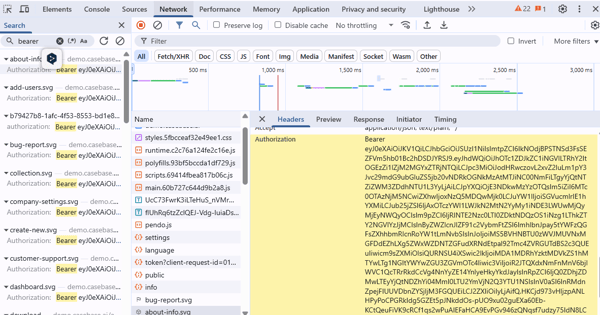
- Copy the token from the header
→ Example:Authorization: Bearer eyJhbGciOi...
→ Only copy the token itself – without the word “Bearer”
C) 🔐 Authorize in Swagger
-
Open the Swagger UI:
https://demo.casebase.ai/api/v1/swagger-ui/index.html -
Click Authorize in the top right
-
Paste the token in the format:
Bearer eyJhbGciOi... -
Click Authorize, then Close
D) 📂 Select an API
You’re now authenticated and can try any available API.
For example, search for:WorkspaceUseCaseController → GET /api/v1/workspaces/{workspaceId}/use-cases
Click the entry to view more details.
E) 🚀 Execute an API Request (“Try it out”)
-
Click Try it out
-
Insert your Workspace ID
→ Go back to your Casebase app
→ Open Developer Tools → Network tab → search forworkspaces
→ Copy a workspace ID (e.g.c2c3f1c3-0e7b-4e7b-9c21...) -
Insert the Use Case ID
→ Similarly, search the Network tab foridoruse-case
→ Use it as a path parameter -
Select your login method (Provider):
-
AD= SSO via Microsoft -
PW= Email & Password
-
-
Click Execute
💡 Token Validity & Error Handling
If Swagger returns an error like 401 Unauthorized, your token may have expired.
Simply repeat step B) to get a new token and re-authorize in Swagger.
F) ✅ Result
You now receive the API response directly in the Swagger interface, including:
-
The HTTP status code (e.g.
200 OK) -
The response data (e.g. a JSON list of use cases)
-
The headers and payloads used in the request
G) 🎯 How this guide helps you work with the REST API
1. Understand what the API can do
In Swagger you can see:
-
All available endpoints (e.g.
/use-cases,/workspaces) -
The HTTP method (GET, POST, PUT, DELETE)
-
What data to send (parameters, request body)
-
What kind of response you will get
➡ You know exactly how to interact with the API.
2. Authenticate and use tokens correctly
Most APIs are protected – without a token, you get no access.
You learn:
-
How to get a valid Bearer token
-
How to use it correctly in Swagger
➡ You can send authorized API requests – just like a real client.
3. Test the API without writing code
You can test everything in Swagger before coding:
-
Fetch a use case
-
Create a workspace
-
Update or delete data
➡ You get instant feedback without writing a single line of code.
4. Prepare for real-world use (e.g. Postman or your own code)
Once your request works:
-
You can recreate it in Postman
-
Or integrate it directly into your code (e.g. using
fetch(),axios, orcurl)
➡ You can easily apply what you learned from Swagger in your actual application.